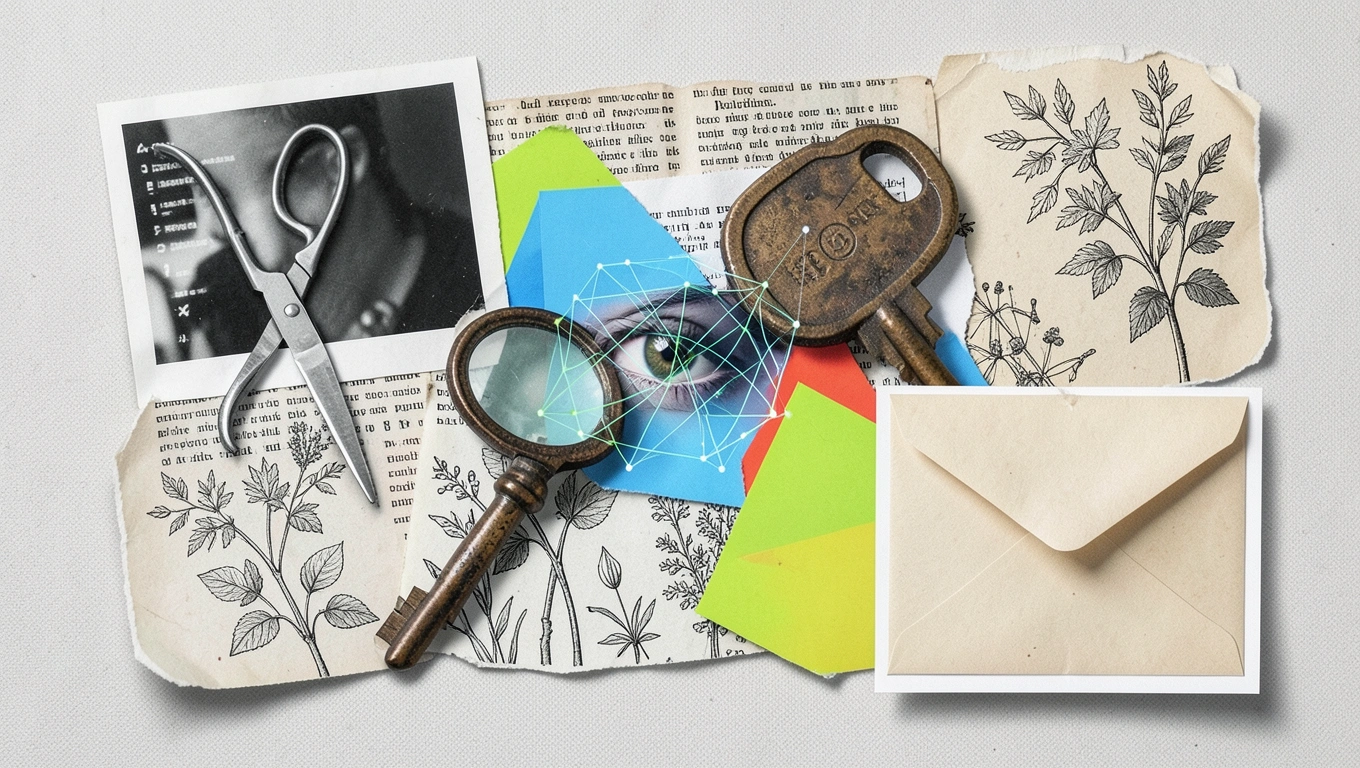
Giving an AI assistant access to your email can feel like handing over the keys to your most personal workspace. Your inbox holds everything from family photos and doctor appointments to work contracts and password reset links. While AI tools promise to save you hours every week by drafting replies, summarizing threads, and organizing your messages, that convenience comes with real trade-offs. The assistant needs permission to read your emails, understand their context, and sometimes send messages on your behalf. That level of access deserves careful thought, not just a quick click on “Allow.” Understanding what you’re actually granting, and to whom, helps you make a choice that balances productivity with privacy.
What Access Actually Means
When you connect an assistant to your email, you’re typically granting what’s called OAuth access. This is a permission framework that lets the assistant perform specific actions without ever seeing your password. That’s good for security, but the scope of those permissions can be surprisingly broad. Some assistants request read-only access, meaning they can see your messages but not send or delete anything. Others ask for full access, which includes reading, writing, sending, deleting, and organizing your entire mailbox.
The average professional spends over three hours a day on work email, so the appeal of automation is obvious. An assistant that can draft responses, flag urgent messages, or extract action items from long threads sounds like a miracle. But that assistant is processing your messages somewhere, usually on the company’s servers. Your partial drafts, the content you type, even emails you never send might get transmitted for analysis. Gmail’s Smart Compose and Smart Reply features, for example, process text on Google’s servers to generate suggestions. If you’re using a third-party tool, your emails pass through another company’s infrastructure entirely.
You also need to consider what happens to that data afterward. Is it stored? Is it used to train the assistant’s language model? Most reputable services include privacy policies that explain data handling, but those documents are dense and rarely read. The practical reality is that you’re trusting the company to protect information you wouldn’t normally share with anyone outside your inner circle.
The Security Risks You’re Taking On
Email assistants introduce new attack surfaces. One growing concern is indirect prompt injection, where a malicious actor sends you an email designed to manipulate the AI. The email might contain hidden instructions that trick the assistant into forwarding sensitive messages, exfiltrating data, or sending replies you never intended. Security researchers have demonstrated how carefully crafted emails can hijack AI behavior, turning your helpful assistant into a vulnerability.
There’s also the question of credential management. If the service you’re using gets breached, attackers might gain access to your email through the stored OAuth tokens. While OAuth is more secure than handing over your password directly, it’s not invulnerable. Revoking access is possible, but many users forget which services they’ve connected over time, leaving old permissions active long after they’ve stopped using a tool.
Then there’s the human factor. If your assistant can send emails on your behalf, what happens when it misunderstands context or tone? An AI might draft a message that’s technically accurate but completely inappropriate for the recipient. You might intend to send a casual note to a colleague and end up with something that sounds cold or overly formal. Worse, if the assistant has access while you’re away from your desk, it could act on instructions you didn’t fully think through, sending messages you’d want to review first.
Next Level: Before connecting any assistant, create a dedicated email alias specifically for AI experiments. Route less sensitive correspondence through that address first. This lets you test the assistant’s behavior and reliability without exposing your primary inbox, and you can revoke access completely if something feels off without disrupting your main communication flow.
How to Connect More Safely
If you decide the productivity gains are worth it, there are ways to reduce your exposure. Start by reviewing exactly what permissions the assistant requests. Many tools offer tiered access levels. If you only need help drafting replies, look for an option that doesn’t include delete or organize permissions. The narrower the scope, the less damage a compromised assistant can do.
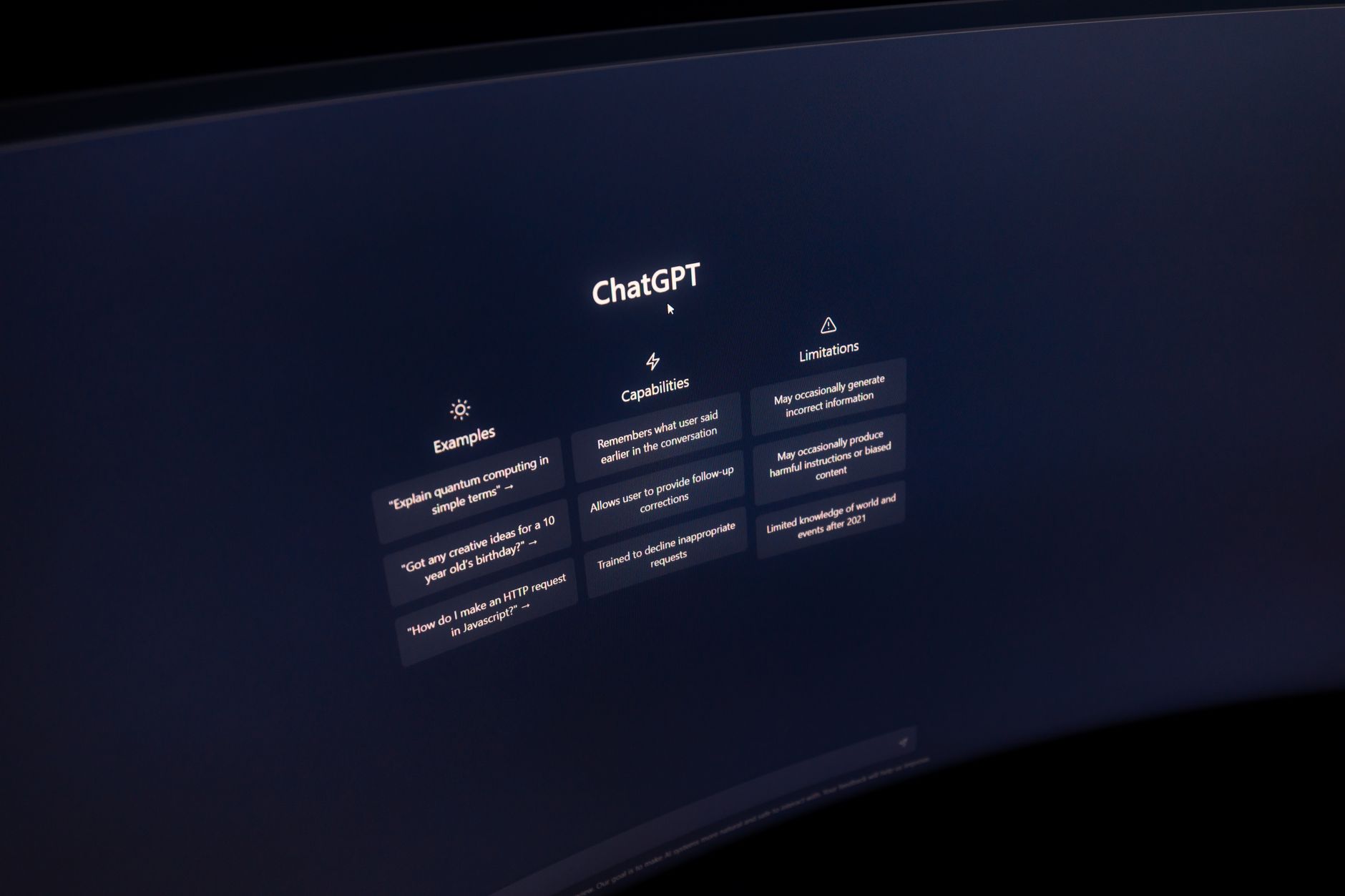
Use the assistant for specific workflows rather than granting blanket access to everything. ChatGPT now lets you send emails directly from its web interface, but you have to connect your email account in the settings to enable that feature. Instead of connecting your main work email, consider using it only for personal messages or newsletters where the stakes are lower. Microsoft Copilot in Outlook, on the other hand, is built directly into the email client and uses your existing Microsoft 365 permissions, which some users find more trustworthy since it’s not a third-party handoff.
Check whether the service offers a dedicated inbox option. OpenAI introduced Botmail, which gives AI agents their own email addresses so they can manage correspondence independently without accessing your personal accounts. This approach keeps your primary inbox private while still letting the assistant handle routine messages. It’s a middle ground that preserves both convenience and control.
Regularly audit your connected services. Most email providers have a security settings page where you can see every app with access to your account. Go through that list every few months and revoke permissions for tools you no longer use. This is especially important if you’ve experimented with multiple assistants or signed up for trials that you forgot to cancel.
When It Makes Sense and When It Doesn’t
Connecting an assistant makes the most sense when you’re drowning in routine correspondence that follows predictable patterns. If you spend an hour a day answering the same questions, declining meeting invitations, or summarizing email threads for your team, an assistant can genuinely reclaim that time. Features like email summarization, auto-replies, and rule creation in tools like Microsoft Copilot are designed for exactly these repetitive tasks.
It makes less sense when your emails involve sensitive topics. If you’re discussing medical issues, legal matters, financial details, or confidential business negotiations, the risk of exposure outweighs the time saved. Even with strong encryption and privacy policies, security best practices for AI agents emphasize limiting access to only what’s necessary. For high-stakes communication, manual review and direct human control remain the safest approach.
It’s also worth considering whether your organization has policies about third-party tools. Many companies prohibit connecting external AI services to work email because of compliance requirements or data sovereignty rules. Even if your company hasn’t explicitly banned it, using an unapproved assistant could put you in violation of IT policies or create liability if something goes wrong.
Q&A
Can an AI assistant accidentally send an email I didn’t approve?
Most assistants require you to review and confirm before sending, but the level of confirmation varies. Some tools show you a draft and wait for your click; others might auto-send replies if you’ve enabled certain automation rules. Always check the settings for any assistant you connect to see whether it can send messages without your explicit approval for each one. If you’re using a feature that sends on your behalf based on triggers or keywords, test it with a trusted recipient first.
What happens to my emails after the AI processes them?
It depends on the service. Some assistants process your email content in real time and don’t store it afterward. Others keep copies for a limited period to improve their models or troubleshoot issues. A few use your data to train future versions of the AI, though most mainstream tools now let you opt out of that. Read the privacy policy carefully and look for phrases like “data retention,” “model training,” and “third-party sharing” to understand what’s actually happening behind the scenes.
Is it safer to use an AI assistant built into my email provider?
Generally, yes. Built-in tools like Gmail’s Smart Compose or Microsoft Copilot in Outlook operate within your existing email infrastructure, so your messages don’t get routed through an additional third party. That reduces the number of places your data lives and limits exposure. However, even built-in assistants process your content on the provider’s servers, so you’re still trusting that company with your information. The main advantage is eliminating the extra handoff to an outside service.
How do I disconnect an assistant if I change my mind?
Go to your email provider’s security or account settings and look for a section called “Connected Apps,” “Third-Party Access,” or “Permissions.” You’ll see a list of every service with access to your account. Find the assistant you want to remove and click “Revoke” or “Remove Access.” The assistant will immediately lose its ability to read or send your emails. If you also want to delete any data the assistant already collected, you’ll need to contact that service separately and request deletion under their privacy policy.
For Conclusion
Connecting an assistant to your email isn’t inherently reckless, but it does require you to weigh convenience against control. The time you save on drafting and organizing can be substantial, especially if you’re managing a high volume of routine messages. But that time savings comes at the cost of sharing access to one of your most personal digital spaces. The key is being intentional about what you connect, when, and why.
Start small, test with lower-stakes email accounts, and pay attention to how the assistant behaves before giving it access to your primary inbox. Understand the permissions you’re granting, know where your data is going, and keep a regular schedule for reviewing and revoking access. The assistants themselves will keep improving, and security practices will evolve, but your inbox is yours to protect. Treat access to it like you would a key to your home – you wouldn’t hand it out carelessly, and you’d want to know exactly who’s holding it at any given time.